
Welcome to MyCareCorner, your personal portal to your health record. We created this simple, yet comprehensive guide to help you navigate through your new portal.
Patients will receive an email with a direct link to securely access the patient portal. They must use this email link to connect to their health records.
Self-Registration (Create Account in MCC)
- To self-register, enter MyCareCorner.net into your browser window.
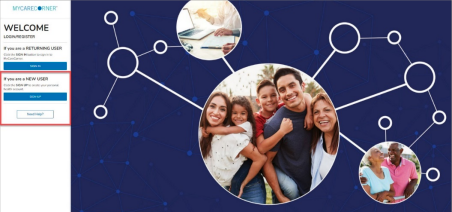
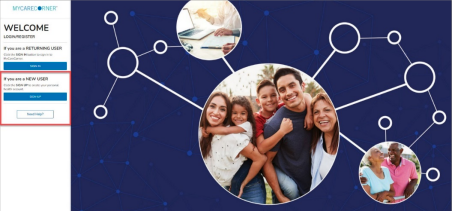
- The Welcome page is displayed. In the New User section, click Sign Up
Using the Email From Your Inbox:
- Open your email from Coryell Health Patient Portal, click the link in the email. The MyCareCorner page is launched.
- Click Continue.
- If this is the first time logging on to MyCareCorner, click Create Account. If you’ve previously created an account, you may skip to step 11.
- Enter your information in the fields provided: First Name, Last Name, Relationship, Country, Sex, and Date of Birth.
- In the Create Account to Manage This Record section, enter an email address and password using the fields provided: Email, Password, Confirm Password.
- Enter the characters you see in the field provided.
- Check the I agree to the Terms and Conditions box.
- Click Create Account.
- The Invitation Code screen is displayed. When launching directly from the email, your customized invitation code is automatically displayed in the boxes.
- Answer the verification question in the box provided and click Submit.
- The Complete Your Information Transfer to MyCareCorner page is displayed

Comments
0 comments
Please sign in to leave a comment.